If you can't remember your OneKey MLS password to access the OneKey dashboard and Matrix, there's help accessible right from the page.
1. From the log on page, click Forgot Password?
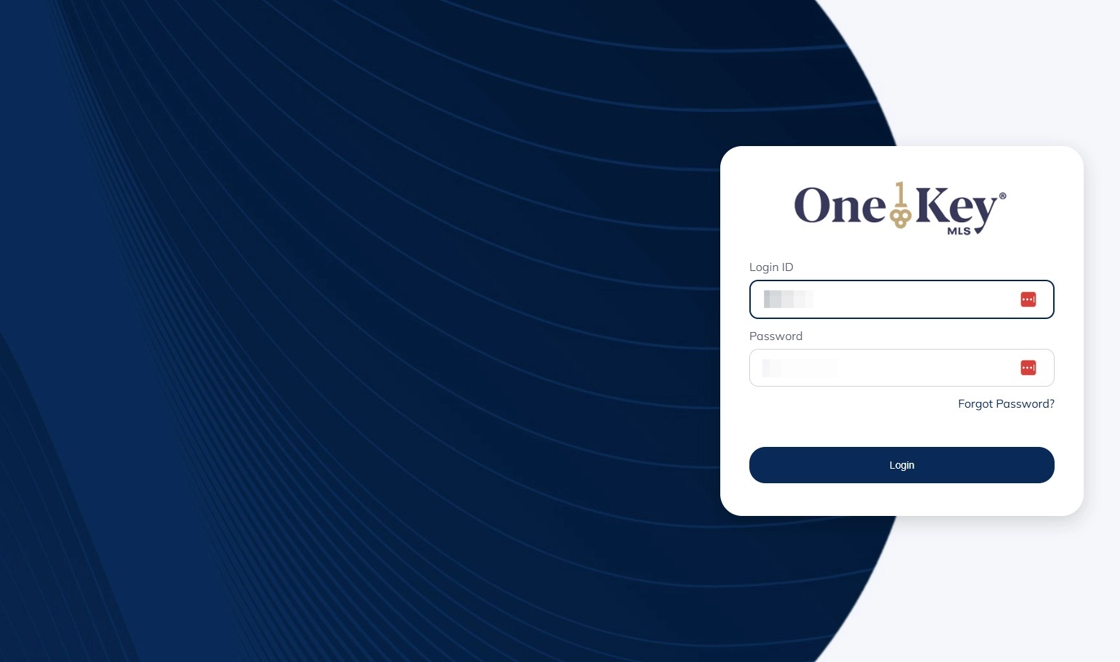
2. Enter your ID in the MLS Login ID field.

3. Click NEXT

4. Click NEXT

5. An email will be sent to the email address associated with your OneKey MLS account from no-reply@cotality.com with the subject line, "Forgotten Password Reset Request." Please note: it may take a few minutes for the email to arrive. Be sure to check your spam folder.

6. Click the link provided in the email (or copy/paste into a browser).

7. Click on the send code option to indicate how you would like to receive your verification. Based on your individual account you may have a text or email option.

8. Based on your above selection a text or email will be sent to the phone number or email address associated with your OneKey MLS account from do-not-reply@corelogic.com with the subject line: "onekey: New authentication request". Please note: it may take a few minutes for the email to arrive. Be sure to check your spam folder.

10. Return to your browser window and enter the code provided in the Verification Code field.

11. Click Verify

12. Enter a new password in the New Password field. Please note: your password must meet the following requirements:
Contain at least 6 letters, 2 numbers, and be 8-12 characters long
It may contain special characters and spaces.
It may not use characters from a password for 180 days or until 3 password changes have occurred.

13. Enter the same new password in the Password Confirmation field.

14. Click NEXT

15. Your password is reset! Click ONEKEY to proceed to the MLS.

16. You will receive an email confirmation of this change from no-reply@cotality.com with the subject line "Your password has been changed!"
